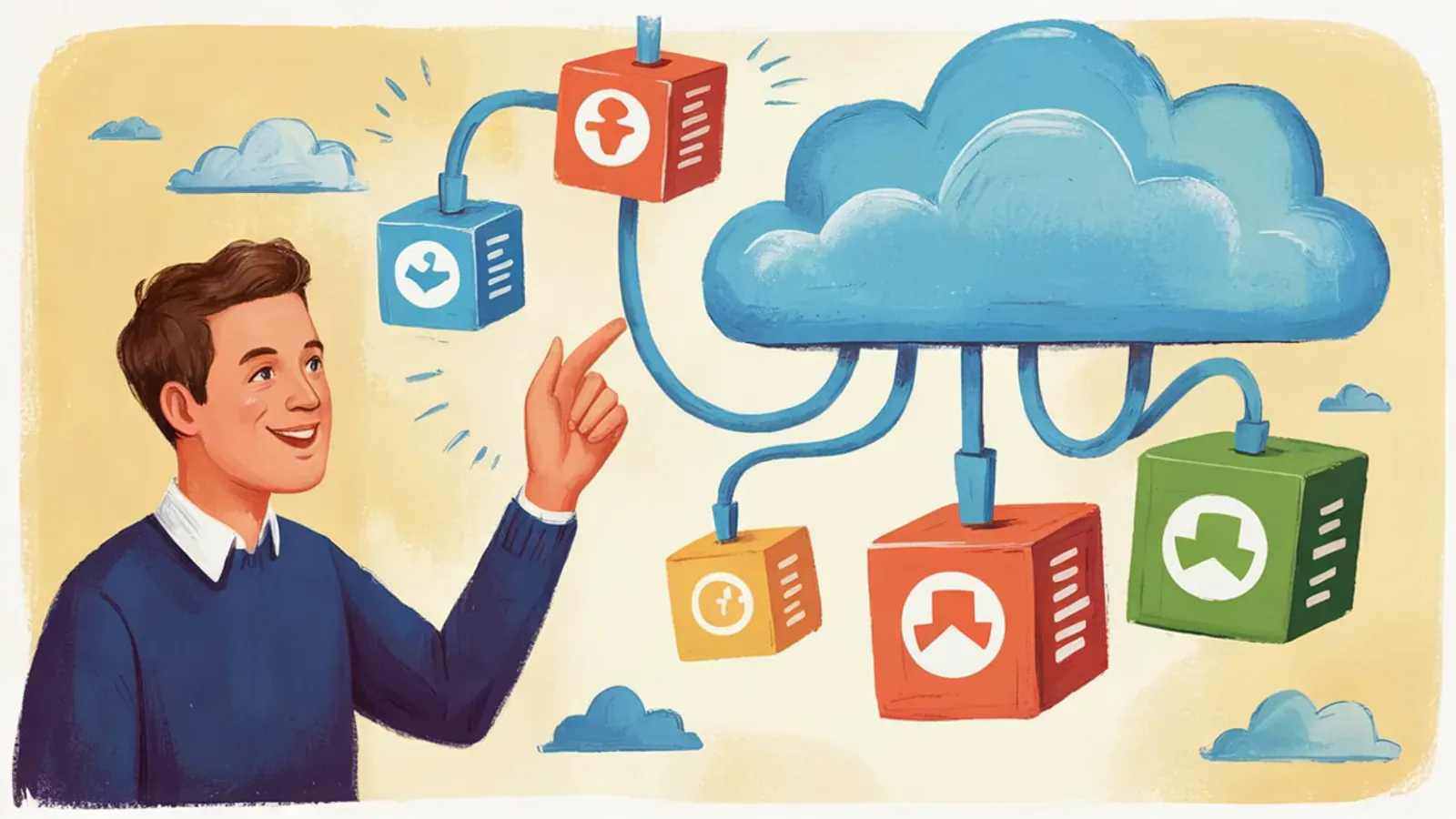


Your customers call to ask where their order is, to request an invoice or to report that something arrived damaged. Every call ends with someone on your team searching the CRM for data that the customer could look up on their own.
That is what Experience Cloud is for: the Salesforce tool for building portals where each customer sees their own information and handles their own requests. In this guide we show you how to build a customer portal step by step, from the site to an Agentforce agent inside it.
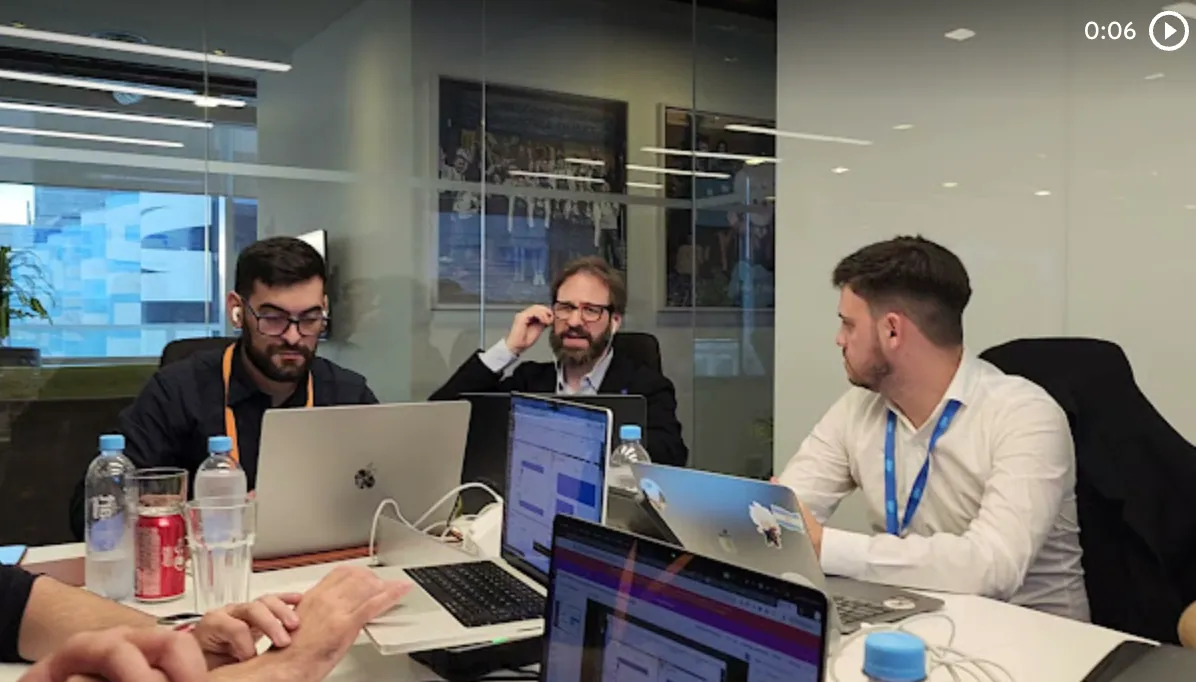
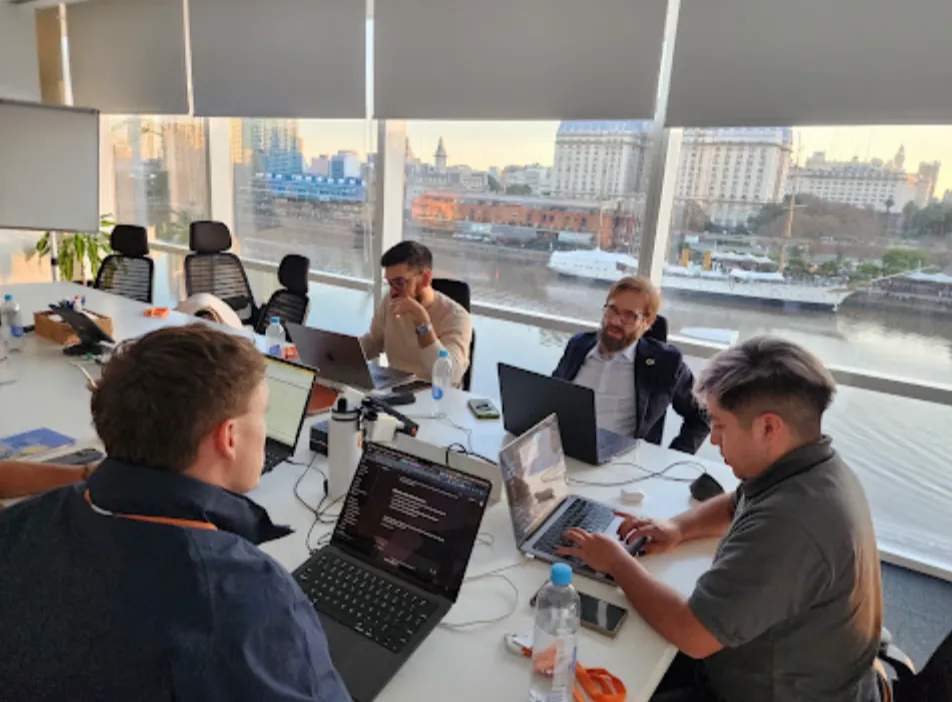
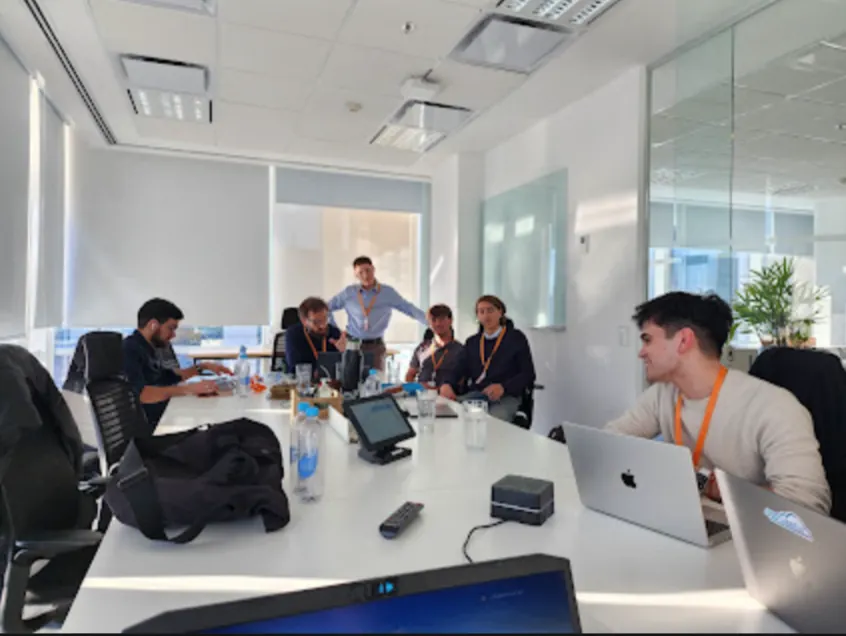
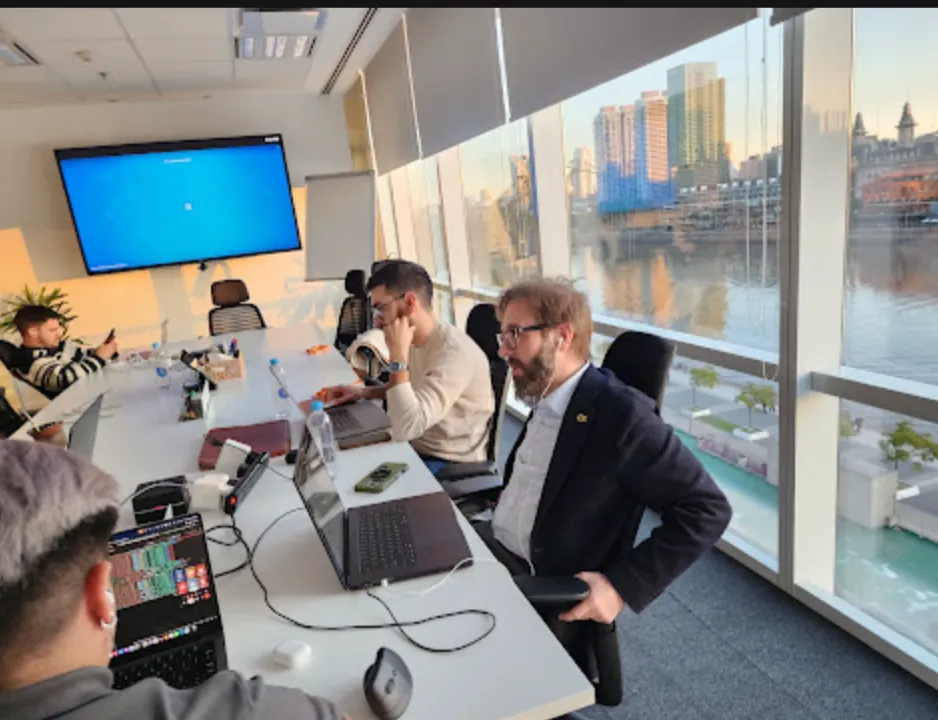
The walkthrough comes from the second part of Vantegrate's Experience Cloud Masterclass, held on October 15 with Juan Manuel Garrido, Josué Mendoza and Francisco Morales, who joined from Europe. Josué built the portal live, and here you have everything organized so you can replicate it in your org.
Experience Cloud, Self Service and the name salad
Before the demo, JuanMa suggested a quick review of what this product has been called over time. The list surprises even people who have worked with Salesforce for years.
It started as Salesforce Communities.
Then came the famous Community Cloud, the name most of the market knew it by.
Later it became Experience Cloud, the name that almost the entire ecosystem still uses.
For less than a year, between one Dreamforce and the next, it was called Agentforce Service.
Today it is called Self Service, plain and simple.
Josué said that one of his first projects was with Community Cloud. And in the class everyone kept saying Experience Cloud, because that is how most teams search for it and recognize it.
Why you should look at functionality and not the brand
Fran mentioned that, from what he has read, the product is the same under the hood. JuanMa added his own theory: new names are perceived as continuous innovation, especially among investors who do not know the platform in detail.
For anyone preparing for a certification, the constant renaming is a real complication. That is why it pays to understand the underlying concepts, which are the ones that stay the same.
What Experience Cloud is today
In its origins they were communities, in the heyday of social networks. The idea was collaboration: someone created a record, others commented, and a kind of forum took shape.
Later Salesforce realized that the same foundation could be used to build websites, portals and applications. That is why the product started talking about experiences.
For JuanMa, the name Self Service falls short. The product offers much more power than a self-service portal, even though that is one of its most frequent uses.
The online banking analogy
Josué explained it with a very clear image. Salesforce is the whole bank and Experience Cloud is its online banking.
When you log in to your online banking, you see your accounts, your cards and your debts. You do not see anyone else's, and that is exactly the goal of a customer portal.
The Andina case: a distributor that lives on the phone
For the demo, Josué invented Andina, a B2B distributor that sells to stores across the region and manages everything in Salesforce. The name was random, although JuanMa recalled that a company with the same name has a real Agentforce success story.
Andina's problem is a familiar one: customers call all the time to ask about their order, their invoice or a shipment that arrived damaged. The support team has the information in the CRM, but spends the day repeating the same data over the phone.
The proposal was a portal where each customer sees their data, opens their cases and handles their own requests.
Fewer calls, fewer emails and fewer cases entered by hand.
If your company is in wholesale distribution or in another of the industries with B2B sales, this scenario will sound familiar.
The portal steps
Josué laid out the implementation in six steps, a sequence that also works for real projects. The main blocks are these:
Create the site.
Assign users.
Protect data security.
Extend functionality with Flows and Lightning Web Components.
Add Agentforce as a final bonus.
The idea is that each stage leaves the portal one step closer to production. In the demo org there was one account, Almacén El Roble, with two contacts (María López and Pedro Ruiz) and a completely standard orders view.
Create the site and build the pages
Before creating anything there are two prerequisites. You need to enable Experience Cloud in the org and have a registered domain for the organization, because all the sites will hang off that domain.
With that ready, Setup shows the list of sites and the option to create a new one. Salesforce offers several templates, with different visual styles and different engines behind them: some work with Lightning components and other, newer ones support technologies like React.
The recommendation is to choose the template based on the use case. A forum, a public site and a private customer portal do not need the same thing.
The Builder: like putting together a landing page
Once the site is created, you work in the Builder. The experience is very similar to building a landing page: you drag components, configure them and see the result right away.
Josué added a banner, a button that could redirect to a help portal with articles, and a list of account records. That component inherits the CRM's list views, such as "My Accounts", so there is nothing to rebuild.
There are plenty of standard components and you can also use custom components. From the theme settings you change colors, logos and branding, and with CSS you can end up with a portal that does not even look like Salesforce.
Publish and test
When the view is ready, you click Publish. The site becomes available on the org's domain, and users log in with their own credentials.
A good habit is to always test from an incognito window. That way you see the portal the way the customer will, not with your administrator session.
Enable accounts and contacts as portal users
With the visual part built, the question becomes who gets into the portal and what they see inside. Order matters: first you enable the account, then the contacts.
On the account, you need to add the Enable as Partner button to the page layout. Once you use it, that account is enabled so its people can log in to the site.
Then, from each contact, you enable them as a portal user and assign a license. In the demo, María ended up as a user with the Customer Community Plus User profile.
Set it up with Cursor and the Salesforce skills
One detail that raised questions: Josué did a good part of this setup without clicking. He worked with Cursor and the Salesforce skills, asking the agent to enable the account as a partner and the contacts as users.
If your team already works this way, it's worth exploring the Salesforce tools for developers.
What to do when you have hundreds of users
JuanMa asked how this scales when many users like María show up. Josué's answer was direct: with a script.
It can be in Apex or in any language that connects to Salesforce, such as Python. In fact, María's and Pedro's access in the demo was enabled by script.
Security comes first
This is the step you can't skip. Before showing a single piece of data, you have to define what each external user can see.
It all starts in Sharing Settings, where besides internal access you define the default access for external users. Josué's best practice is only one: external access always private.
In his closing remarks, Josué called it one of the most common bad practices. Leaving external access as public has no place in a customer portal.
Sharing sets: open only what's necessary
With everything private, you open just what's needed with sharing sets. Josué created one called Customers with two rules:
If the user's account matches the case's account, the user can read that case.
If the order's account matches the user's account, the user can see that order.
The result was shown live. María logged in to the portal, opened the accounts view, and only saw Almacén El Roble, the account she belongs to.
Watch out for security changes for guest users
Josué explained that Salesforce tightened security for guest users and portal users. According to the discussion, the change had been announced well in advance, but when the release arrived, many administrators ran into problems.
The message was simple: read the notes for each release before it reaches production. If you want to dig deeper into this approach, see how we handle platform security and data transparency.
One page for different audiences
Another question was whether you need to adjust permissions inside the Builder. Besides the content visibility settings, you can create different versions of the same page depending on the audience.
For example, customers can see a list of accounts on the home page. Partners, on the other hand, could see a mini dashboard with delivered orders, returned orders, and number of claims.
Extend the portal with Flows and Lightning Web Components
With users and security sorted out, it's time for the portal to do something useful. The goal was for María to be able to create a claim without calling anyone.
Josué created a new page called Claims and added a screen Flow to it. The form starts with a simple "Tell us what happened" and creates the record in Salesforce.
On the same page he added a Lightning Web Component with the customer's list of orders. He published, logged in as María, and both components worked.
Flow or component: when to use each
The rule Josué left is a practical one. If you can solve it with a Flow, use a Flow, and save the Lightning Web Component for when the functionality gets complicated.
The most important point is that both respect all the record visibility configured in the CRM. Nothing is exposed that the sharing sets don't allow.
Bonus: Agentforce inside the portal
The bonus was adding an agent. In the demo, the agent was available on every page of the portal, no matter where the user navigated.
Behind it is an Agentforce agent with Omni-Channel connected, to hand the conversation off to people or to other agents. Andina's agent was simple: it only answered questions about orders.
When asked something outside its scope, it replied "I can't help you with this request".
If you're evaluating AI agents for customer service, the portal is one of the most natural places to start.
How it's set up
When you expose an agent, Salesforce automatically creates another site whose only job is to contain the agent. That site is the one that then connects to the main portal.
The connection is made with a small script in the head markup of the portal. It takes three parameters: the deployment ID (Josué thought he remembered it's the Omni-Channel one), the agent's name, and the URL of the site where it's hosted.
If Omni-Channel routing isn't configured, the chat shows that there are no agents available. That part was left as a possible topic for a third Masterclass.
With or without login
From the chat, someone asked whether the agent works for users who haven't logged in. Josué confirmed that it does, because he had already done it for a demo in another project.
The permissions disclaimer
Josué was honest: to get everything working for the class, he gave the agent superpowers so it could see everything. In production, that's exactly what you should not do.
The recommendation is to be very careful with the permissions the agent gets. It has to see the same thing the user would see and nothing more.
A chat as the only interface
Fran added an idea to think about. If an application's interface is very complex, why not build an application whose only interface is a chat?
He clarified that he doesn't know if he would do it with Experience Cloud. But the concept opens an interesting conversation about how customers will interact with systems.
Beyond Agentforce: Sellium
JuanMa reminded us that the self-service layer can be enriched with AI in two ways. One is Agentforce, native to Salesforce, and the other is Sellium, Vantegrate's product.
Sellium connects an agent from a Salesforce org, an experience site or a website. It also works on WhatsApp, Instagram, TikTok, Facebook or email, and it is compatible with Salesforce and with other ecosystems.
The result: from phone calls to self-service
That's how Josué closed the demo. Before, Andina had phone inquiries, cases created by hand and the entire support team dedicated to that.
Now there is a portal where the customer creates their claims, tracks them and checks their orders. And an agent that responds without anyone picking up the phone.
If you want to bring Experience Cloud and Agentforce to your org, learn about our experience with Salesforce and meet the Vantegrate team. The first part of this Masterclass is on Vantegrate's YouTube channel and is still valid.
In Vantegrate Pulse we publish guides for each class, and in resources there is downloadable material. And if you prefer that we support you through the implementation, you can schedule a demo.
Frequently asked questions
Are Experience Cloud and Self Service the same thing?
Yes. Self Service is the current name of the product that was previously called Communities, Community Cloud, Experience Cloud and Agentforce Service, and behind the scenes the tool is the same.
What do you need before creating a portal in Experience Cloud?
You need to enable Experience Cloud in the org and have a domain registered for the organization. Then you choose the template based on the use case and build the pages in the Builder.
How do you give customers access to the portal?
First you enable the account with the Enable as Partner button. Then each contact is converted into a portal user with its license, for example with the Customer Community Plus User profile.
How do you prevent a customer from seeing another customer's data?
By setting external access to private in Sharing Settings and opening only what's necessary with sharing sets. That way each user sees only the cases and orders of their own account.
Can you add an Agentforce agent to an Experience Cloud portal?
Yes. It is added with a small script in the portal's head markup, and you should have Omni-Channel configured to hand off to people, making sure the agent has only the necessary permissions.