
There is a scene that repeats itself in companies of every size and in every industry.
Someone tries to log in to their work account on a Monday morning, and the screen asks for something that wasn't there yesterday.
It's not a bug or a whim of the system: it's Salesforce security working quietly in the background.
Every so often, the platform raises the bar and adds one more layer of protection.
At first it feels like a nuisance, and before long you end up thankful for it.
At Vantegrate we live with these security changes every day, so it's worth explaining them without technical jargon.
The idea is simple: when your turn comes, you already know what it's about and it doesn't catch you off guard.
Because few things slow a team down as much as being locked out of its own Org on the very day it most needed to get in.
Why Salesforce tightens security every so often
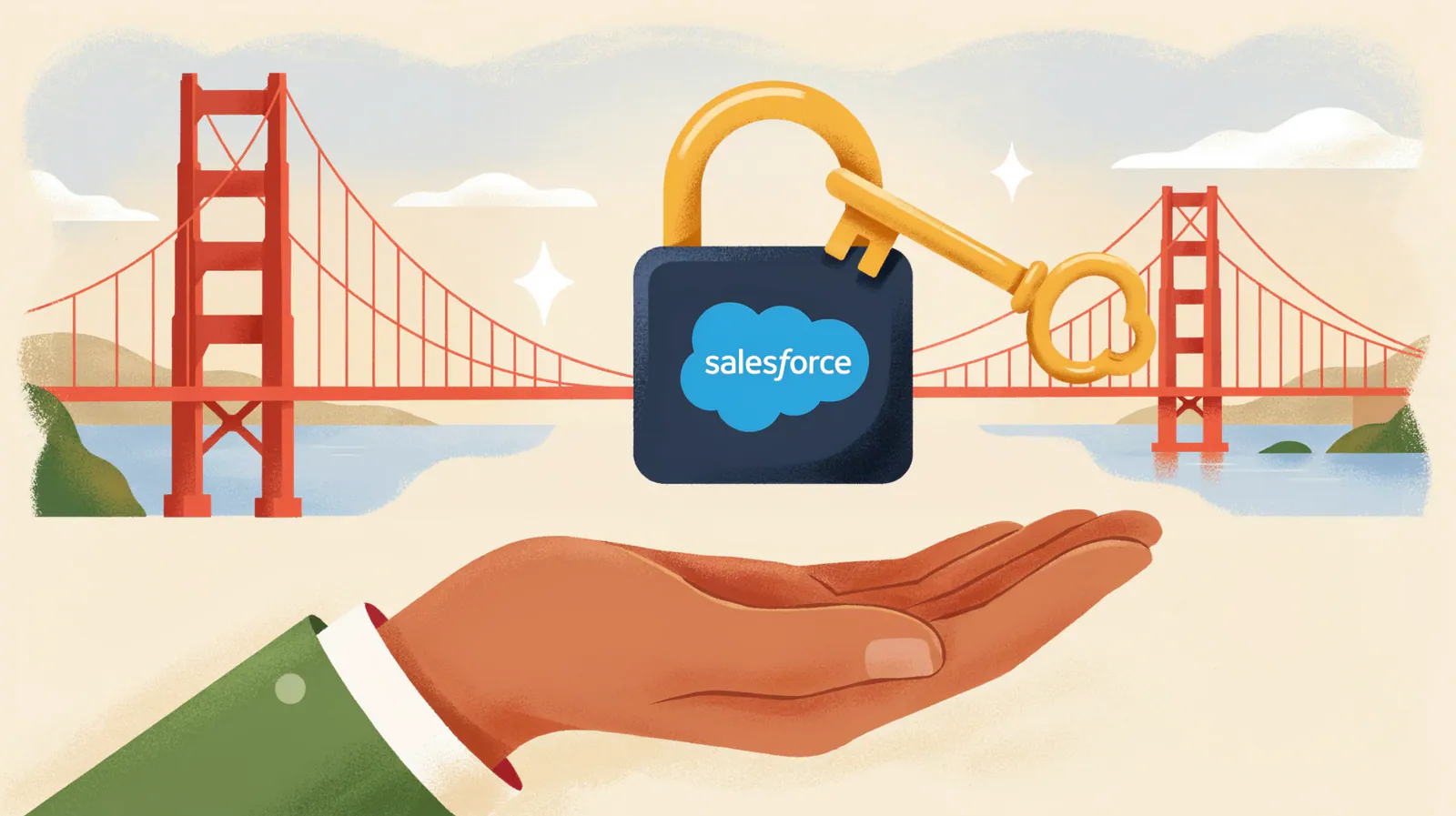
Imagine a house with a single lock.
It works fine until someone shows up who wants to get in without permission.
Platforms that store data for thousands of companies live exactly that tension, all the time.
That's why they add new locks periodically, before there is anything to regret.
Multi-factor authentication, passkeys and identity verification are exactly that: additional locks.
Each one adds a step that takes you a few seconds, but makes an attacker's life much harder.
After more than three decades inside the ecosystem, we have learned to read the pattern ahead of time.
When the platform announces a tightening, the question is not if it will arrive, but when.
And understanding that rhythm completely changes how you prepare.
Instead of reacting at the last minute, you get ahead of it.
An ordinary day, in slow motion
Let's take a case to make it clearer.
Marina leads the sales team and logs in to the platform every morning without a second thought.
One day, when she signs in, she sees a request to register an additional verification method.
It's not an attack or a problem with her account: it's the platform applying a new rule.
Marina spends three minutes setting up a passkey with her phone's fingerprint reader.
Since then she logs in as fast as ever, but with a layer of protection she didn't have before.
If she had ignored the earlier notices, she would have discovered the change at the worst moment, with a meeting about to start.
The difference between a calm morning and a scramble wasn't the technology, but the timely notice.
That's exactly what we aim for when we explain these things in advance.
What changes for anyone who uses Salesforce
You don't need to be an administrator or have a technical profile here.
These changes affect everyone who logs in to the platform, from management to the everyday user.
Everyone on the team should know what's coming, so nobody feels trapped by a new screen.
Multi-factor authentication is no longer optional
A login with just a username and password is no longer enough.
MFA (short for multi-factor authentication) becomes mandatory, however you log in.
This applies whether you use a username and password or log in with Single Sign-On (that "sign in with" button that saves you from memorizing a thousand passwords).
If you don't have a verification method registered yet, the platform will ask you for one before letting you through.
That method can be a passkey, a physical security key or an authenticator app on your phone.
The logic is easy to explain: in addition to something you know (the password), you add something you have (the device).
That way, even if someone guesses the password, they are missing the second piece needed to get in.
An extra step to view and export reports
More and more, the platform asks you to confirm your identity when someone tries to view or export sensitive data.
It's that "additional step" that shows up right when you're about to download a report with sensitive information.
It may seem inconvenient, but think about what it would mean if anyone could walk away with your customer base without anyone noticing.
That extra request is actually a safety net for the most valuable thing you have: your data.
If you work heavily with dashboards and metrics, a tool like Metrix helps keep that access to information organized and traceable.
Knowing who looks at what, and when, stops being a mystery.
What changes if you are an administrator or have privileged permissions
Here the requirements go up a notch, and for good reason.
An administrator account is the master key: if it falls into the wrong hands, it opens every door.
That's why the platform treats these profiles with a special level of care.
Phishing-resistant MFA: passkeys and physical keys
For these profiles, a code sent by SMS is no longer enough.
The reason is concrete: a text message can be intercepted or stolen through trickery.
That's why the platform requires phishing-resistant MFA, that is, passkeys or physical WebAuthn-type keys.
These options are tied to the device and can't be "copied" remotely, not even if someone tricks you with a fake email.
Phishing, in plain terms, is that attempt to pose as someone trustworthy in order to steal your password.
A passkey breaks that game, because there is no written password to hand over by mistake.
If your team includes developers or administrators, it's worth reviewing how these technical profiles are preparing well in advance.
Leaving it for last usually ends in an unnecessary scramble.
Controls that switch on in the background
Besides MFA, there is a series of protections that the platform turns on gradually.
Most of them work without you doing anything, but it pays to know them:
Email domain verification: confirms that emails are sent from legitimate addresses and not by an impostor.
Blocking of risky connections: cuts off access coming from anonymizing VPNs, proxies, and suspicious IPs.
Expanded login anomaly detection: flags unusual attempts, such as a login from a country where no one on the team works.
Stronger controls for large exports: monitors mass data downloads (this last one is available to those with advanced monitoring capabilities).
Each of these is a silent alarm that goes off on its own when something doesn't add up.
They don't get in the way day to day, but they are there, ready to warn you.
You can see how these layers of protection fit together on our page dedicated to security.
Passkeys, security keys, and authenticator apps: what each one is
These names sound technical, but the idea behind them is easy to understand.
Let's go through them one by one, with real-life examples.
The passkey
A passkey is like a digital key that lives on your phone or computer.
Instead of typing a password, you confirm your identity with your fingerprint, your face, or the device PIN.
The nice part is that there is nothing to memorize and nothing that can be guessed.
If there is no written password, there is no password to steal.
The physical security key
It is a small device, similar to a flash drive, that you plug into or hold near your computer.
Without that key in hand, nobody gets in, even if they have the password.
It is the preferred option in highly regulated industries, such as financial services, where improper access costs a fortune.
Think of it as the key to a safe: either you have it, or you don't get in.
The authenticator app
It is an app on your phone that generates a temporary code that changes every few seconds.
That code works as a one-time password, valid for only an instant.
Even if someone glimpses it over your shoulder, by the time they try to use it, it has already expired.
How these changes roll out (the pattern worth memorizing)
There is an order that repeats in every wave, and understanding it gives you a huge advantage.
First, the changes are tested in sandboxes (those practice environments that copy reality without touching live data).
Some time later, they land in Production, which is where everyone actually works.
And within Production, they almost always start with administrators and privileged users.
Only afterward do they extend, in stages, to everyone else.
That's why, when you see a hardening announced, you already know in what order it will reach you.
It's not magic: it's a pattern as predictable as the seasons.
And anything predictable can be planned calmly.
A team that understands this sequence stops experiencing every change as an unpleasant surprise.
Common mistakes to avoid
Before the checklist, it's worth naming the traps that almost everyone falls into.
The first is waiting for the last-minute banner, when the platform is already blocking access.
The second is leaving administrators for last, precisely the most exposed profiles.
The third is not documenting the procedure, so every new person has to figure everything out by trial and error.
Avoiding these three already puts you well ahead of the average.
Why some industries feel it more intensely
Not every company feels these changes with the same force.
Those that handle highly sensitive information are usually the first to notice each adjustment.
Think of a financial institution, a clinic, or a company that processes payments every day.
In those contexts, improper access is not just a headache: it can mean fines, lawsuits, and loss of trust.
That's why, when the platform strengthens security, those organizations welcome it almost immediately.
What for some is an extra step, for them is a protection they had been waiting for.
And that same logic, sooner or later, ends up reaching everyone else.
It's better to adopt the habit before it turns into an emergency.
The prevention checklist that saves you a complicated Monday
The good news is that getting ready takes little time.
Twenty minutes of getting organized up front are worth more than a whole morning putting out fires.
Here is the essential list, in order of priority:
Check who still doesn't have MFA enabled, starting with the most sensitive accounts.
Register passkeys for yourself and for the entire administration team.
Verify the email domains you send emails from.
Confirm that reports with sensitive data have the extra verification step.
Document the procedure so anyone new knows how to set it up.
That last point is key: security is not an event, it's a routine.
If you handle many documents with confidential information, adding a processor like Arconte helps keep that entire flow under control.
The more automated the handling of sensitive data is, the less room there is for human error.
Security as an advantage, not an obstacle
It's easy to see these changes as an annoyance that appears out of nowhere.
But there is another way to look at them, and it's much more useful.
Every new layer of protection is also a signal of trust to your customers.
A company that protects its data creates peace of mind, and peace of mind sells.
This becomes even more important when you start adding artificial intelligence agents to your operation.
An AI agent is only as reliable as the foundation it rests on.
That's why, at Vantegrate we take care of every detail of how information is accessed and handled.
And that's also why we openly publish our data transparency policy, so nobody has to guess what happens with their information.
Security, properly understood, doesn't slow the business down: it enables it.
Frequently asked questions about security changes in Salesforce
Is MFA mandatory even for regular users?
Yes.
Multifactor authentication applies to everyone, not just technical profiles.
Why are administrators asked for passkeys instead of an SMS code?
Because an SMS can be intercepted or stolen through deception.
A passkey is tied to the device, so it resists phishing attempts much better.
What happens if I don't set anything up in time?
The platform will stop you at login until you register a valid method.
That's why it's best to get ahead of it and not wait for the last-minute notice.
Do these changes affect only Salesforce?
No.
It's an industry-wide trend, although each platform implements it at its own pace.
Where can I keep learning about these topics?
You can find more practical guides like this one on Pulse, our content hub.
And if you want to see how all of this applies in a real operation, you can always book a demo and talk it through with our team.